Qstomizer can generate the production file of each customer design using settings you define once per product, without opening the generation tool. You can download the file from the order page, share it with a link or get it through the API.
The file is generated when you request it (from the order page, a print link or the API), not when the order is placed. Each plan includes a monthly number of automatically generated designs: see "Auto Print Ready Designs" on the pricing page. Downloading a file that has already been generated with the same settings does not count again.
1. Automatically generate and download the design.
You can download the design made by your customers from the order page. Go to the "Orders" section of the backoffice, select an order and click on "Auto Generate & Download" to generate and download the design. If the product has several sides, each side produces its own file.
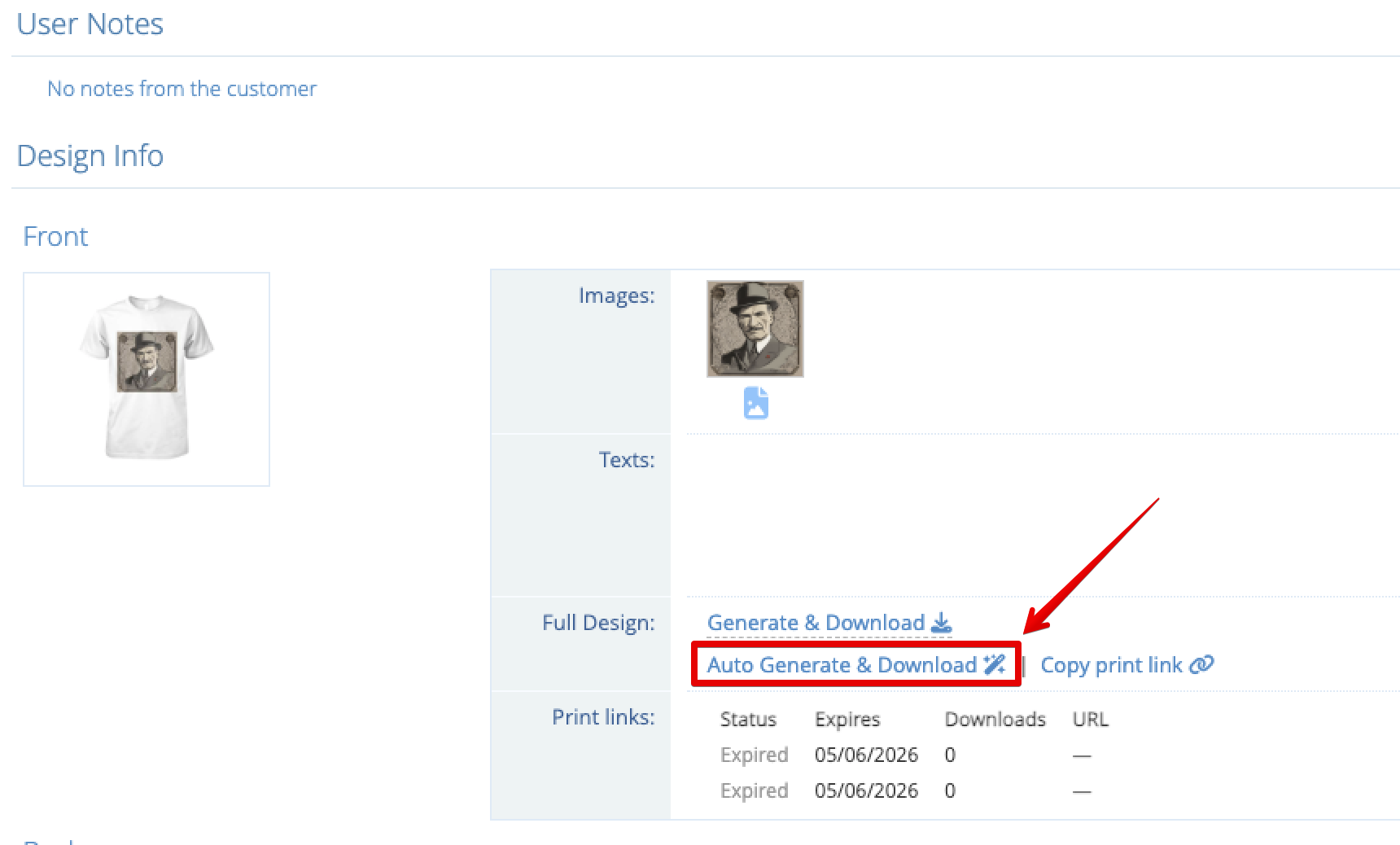
The design will be downloaded with the settings defined in the related product settings. To change the settings, follow these steps:
- Step 1: Go to the "Products" section of the backoffice
- Step 2: Select the product you want to modify the settings.
- Step 3: Click on the "General" Tab
- Step 4: Edit the image settings at the bottom of the page.
- Step 5: Click on "Save Generation Parameters".
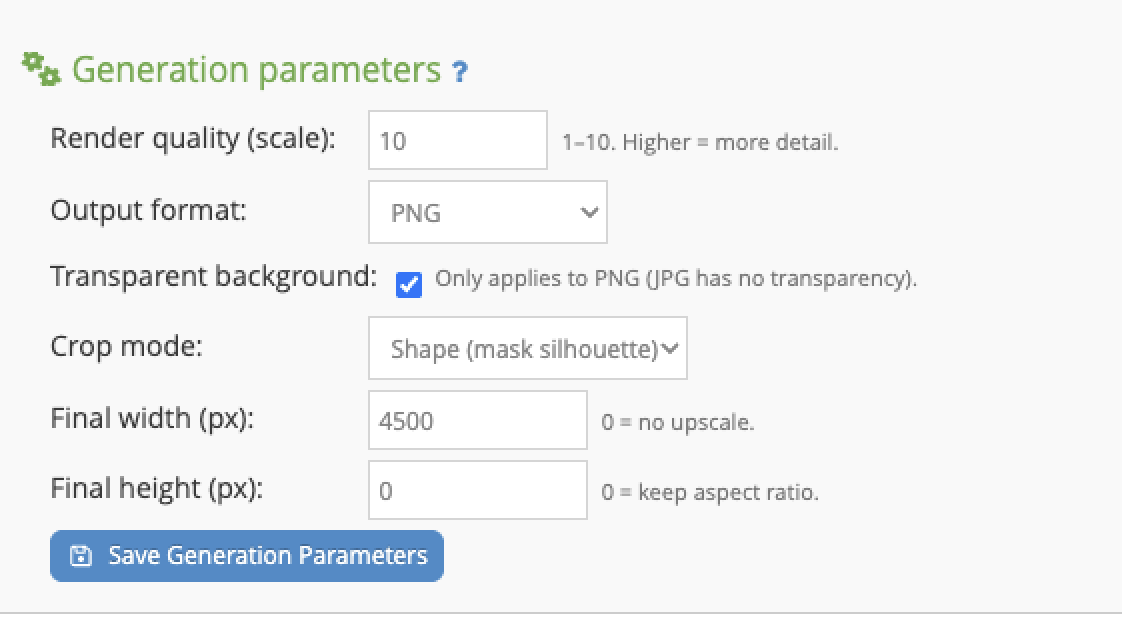
The parameters correspond to the same settings that you can find in the generation tool.
- - Render quality (scale): The value can be 1-10. The design is rendered at the 800x700px canvas size multiplied by this value, so a higher value gives more real detail but larger files. For print files, use 10.
- - Output format: PNG or JPG
- - Transparent Background: If you select PNG as the output format, the background can be transparent.
- - Crop Mode: Full Canvas: the full 800x700 design area is downloaded. Squared: the file is cropped to the rectangle of the print area (the diecut lines), whatever the customer has designed inside it. Shape (Mask silhouette): the design is cropped to the shape of the mask (squared, circular or polygonal) as defined in the product settings. Trim to design: the file is cropped to the bounding box of the artwork itself, removing all the empty space around it (see below).
- - Final Width (px): The width of the final file. The rendered image is resized to this width. Set 0 to keep the size produced by the scale. Resizing makes the file bigger but does not add detail: only the scale does that.
- - Final Height (px): The height of the final file. Set 0 to calculate it from the width and keep the aspect ratio, which is the recommended value. If you set both values with a different aspect ratio, the image is cropped from the center to fit them, so part of the design can be lost.
If the product has more than one side, you can define different settings for each side with the option "Define specific generation parameters per side".
Recommended setup for factory-ready files
To get files with the exact print size and the design in the position chosen by the customer:
- Step 1: Calculate the file size you need: print size in inches x DPI. For a print area of 12 x 8 inches at 300 DPI, you need 3600 x 2400px.
- Step 2: Check that the print area is big enough on the canvas: pixels needed / 10, as 10 is the maximum scale. In the example, the print area must measure at least 360 x 240px in the template. At 300 DPI, that is 30px on the canvas for each inch printed. See how to define print areas and get true-to-size prints.
- Step 3: In the generation parameters, set Render quality: 10, Output format: PNG, Transparent background if your production process needs it, and Crop mode: Squared.
- Step 4: Set Final width: 3600 and Final height: 0. As the Squared mode always outputs the print area, every file of that product will have the same size, and the design keeps its position inside it.
- Step 5: Place a test order and print the file before using these settings in production.
What matters in the file is its size in pixels. Set the physical print size in your printing software instead of relying on the DPI value stored in the file.
What limits the quality and the format of the file
- - Customer images: texts are rendered at the selected scale, but an uploaded image cannot have more detail than the original. To avoid low quality files, define a minimum size in pixels for uploads in the "Customers image requirements" setting of the product. A minimum in pixels is more reliable than a minimum in DPI, as the DPI value depends on what is stored in each image.
- - Output: files are PNG or JPG. PDF, vector and CMYK files are not generated, and bleed or crop marks are not added. If your factory requires any of these, that part of the preparation has to be done afterwards.
- - Layout: each file contains one side of the product. If your factory needs several sides arranged on one sheet or template, that step is done outside Qstomizer.
Trim to design (crop the file to your artwork)
By default the generated file always has the size of the full print area, with the design placed inside it and empty space around. If you prepare your files manually for production (DTF, DTG, sublimation...), that means opening every file in an image editor to remove that empty space before sending it to print.
With the Trim to design crop mode, the file is cropped automatically to the bounding box of the artwork, so you get only the design, with a transparent background and nothing around it.
This mode always outputs a PNG with a transparent background: the empty area is detected through the transparency of the image, so the format and the transparent background options are set automatically and cannot be changed while this mode is selected.
Important: because the file no longer matches the size of the print area, it also loses the position reference of the design inside it. This is ideal if you place the designs manually (for instance, arranging several designs on a DTF sheet), but it will break workflows where your printing software positions the design automatically expecting the full print area size. In that case, use one of the other crop modes for that product. You can set the crop mode per product and also override it per side.
With Trim to design, Final width is the width of the whole print area, not of the trimmed file. Each design keeps its real size in proportion to the print area: a small logo produces a small file and a design that fills the area produces a file as wide as the Final width.
Trim to design is available on the Professional plan. If you are on a free trial you can test it during the trial period.
Notice that new settings apply to every file generated after saving them, including files from previous orders that you download again. Print links that have already been created keep serving their current file.
2. Generate download links.
If you need to share the generated design with your customers, your team or external parties (for instance, a fulfillment company), you can create download links for each order and side of the product.
To do so, just click on the "Copy print link" option to generate a shareable link.
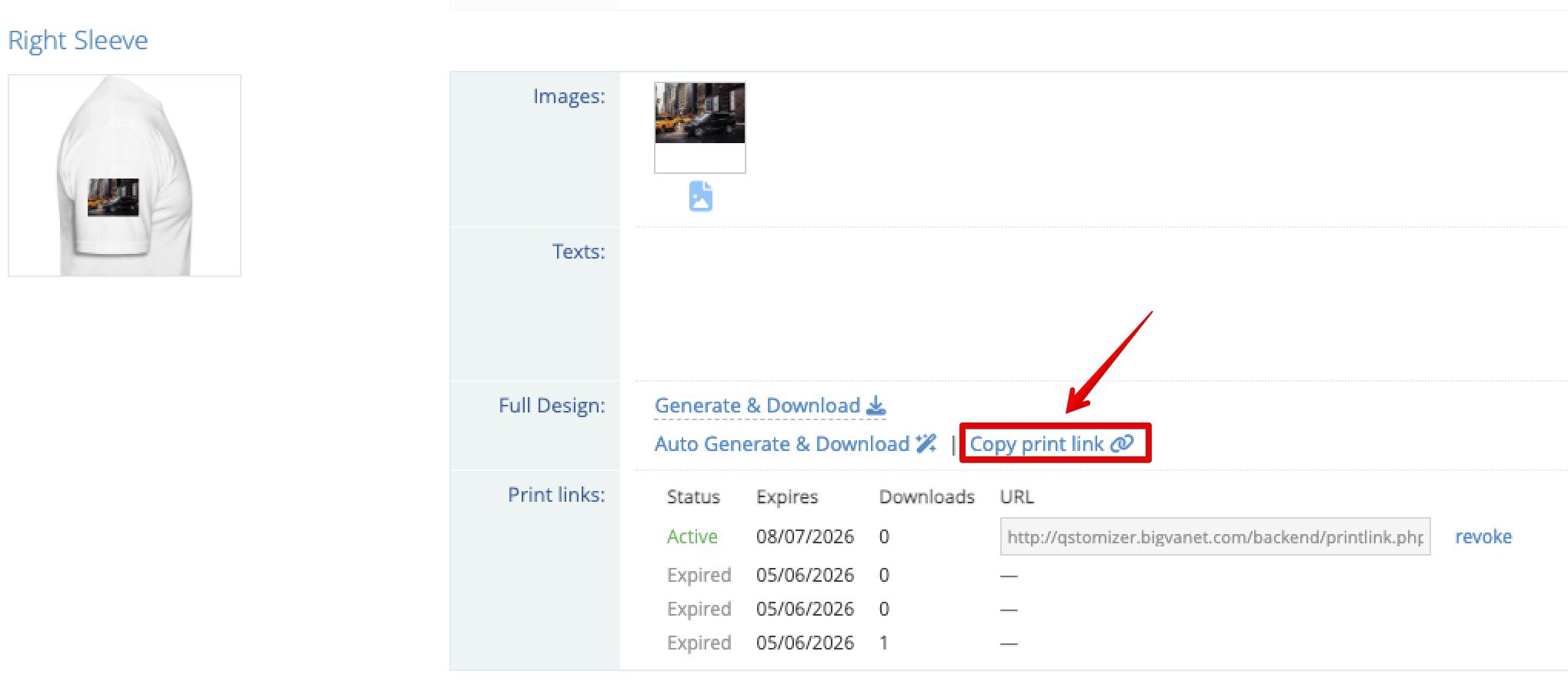
When you click on the link, the systems automatically copy in the clipboard the shareable link and adds it to a list. In the list you can view all the generated links, the times they were generated and you can revoke the link anytime.
Notice that all the links expire after 30 days unless revoked.
3. Automate the process with the API.
With the API, your developer or your production system can get the files without anyone opening the backoffice. For each side of an order, the Get Order endpoint returns a design_hd_url field. Calling that URL generates the file with the settings of the product and returns a temporary download link, valid for 15 minutes.
For instance, your system can receive each new Shopify order, read the Qstomizer order id from the line item property _customorderid, request the files of each side and send them to your factory.
The API is available on the Professional plan. If you are on a free trial you can test it during the trial period.
